Get started
326 commitsLast commit ≈ 1 day ago6 stars0 forks
Semi-manual workstation for creating qualitative research transcripts from subtitle files (e.g., .SRT) produced by speech recognition models such as Whisper. Features easy assigning of speakers, editing, symbols, overlaps etc. as well as different conventions (e.g., GAT2 or TiQ) and export formats.
CapsQual (formerly CapsGAT) is an open source cross-platform workstation for editing and reformatting subtitle files (.SRT, .VTT, .JSON, .TSV, .TXT) into qualitative interview transcripts based on different conventions such as the minimal version of GAT2 (Gesprächsanalytisches Transkriptionssystem 2), TiQ (Talk in Qualitative Research) and those suggested by Kuckartz and Dresing & Pehl. The GUI enables users to assign speakers to segments quickly using keyboard shortcuts. Audio files can be imported and synced to the transcript. This is meant to reduce window-switching and simplify the formatting process. (Currently all audio features require VLC Player to be installed). CapsQual features essential transcript-editing functionality such as segment splitting and merging, customizable symbols, overlapping speech, pauses, comments and more.
However, it is not meant as a replacement for dedicated manual transcription software (for full-fledged, professional transcription software, check out EXMARaLDA), nor as an all-in-one automated transcription worksuite (for AI-powered transcription with automatic diarization check out noScribe), but as a complementary formatting tool to be used with transcription AI models such as Whisper AI or CapsWriter, aimed at those who wish to efficiently tidy up their automatically transcribed interview-data in a user-friendly, intuitive environment. Projects can be loaded or saved. Transcripts can be exported as .HTML, .DOCX, .TXT or .SRT files.
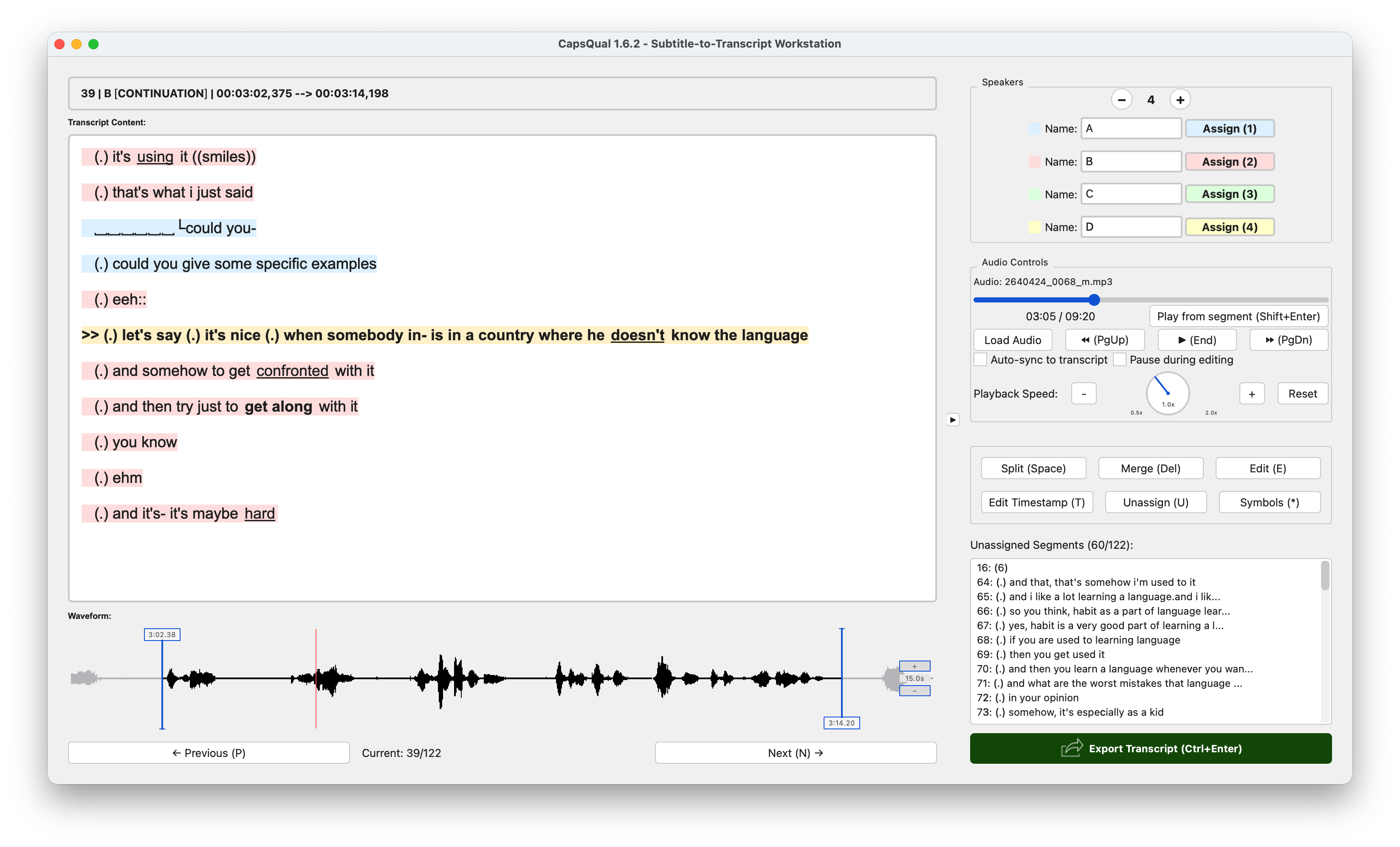
Import audio & subtitles. After installation, Import your files by dragging them onto the CapsQual window, using the menu bar or clicking the Load Audio button. If subtitle files are in the same folder as the audio file, CapsQual will offer to import them automatically.
Assign speakers. Use the number keys (1, 2, 3, …) or buttons in the top-right corner to assign speakers to the selected segments. Add/remove speakers with the + / − buttons and rename speakers using the text fields.
Auto-process transcript. Use Modify transcript to strip punctuation or convert everything to lowercase. CapsQual can also convert silent segments into pause symbols.
Review & annotate. Review the transcript sequentially and split (Space), merge (Del) and edit (E/F2) segments where necessary. Drag the position markers in the waveform viewer or edit timestamps directly (T) to adjust the start and end time of each segment if necessary. Use the Symbols button (*) to insert pauses, overlaps, comments and other transcription symbols.
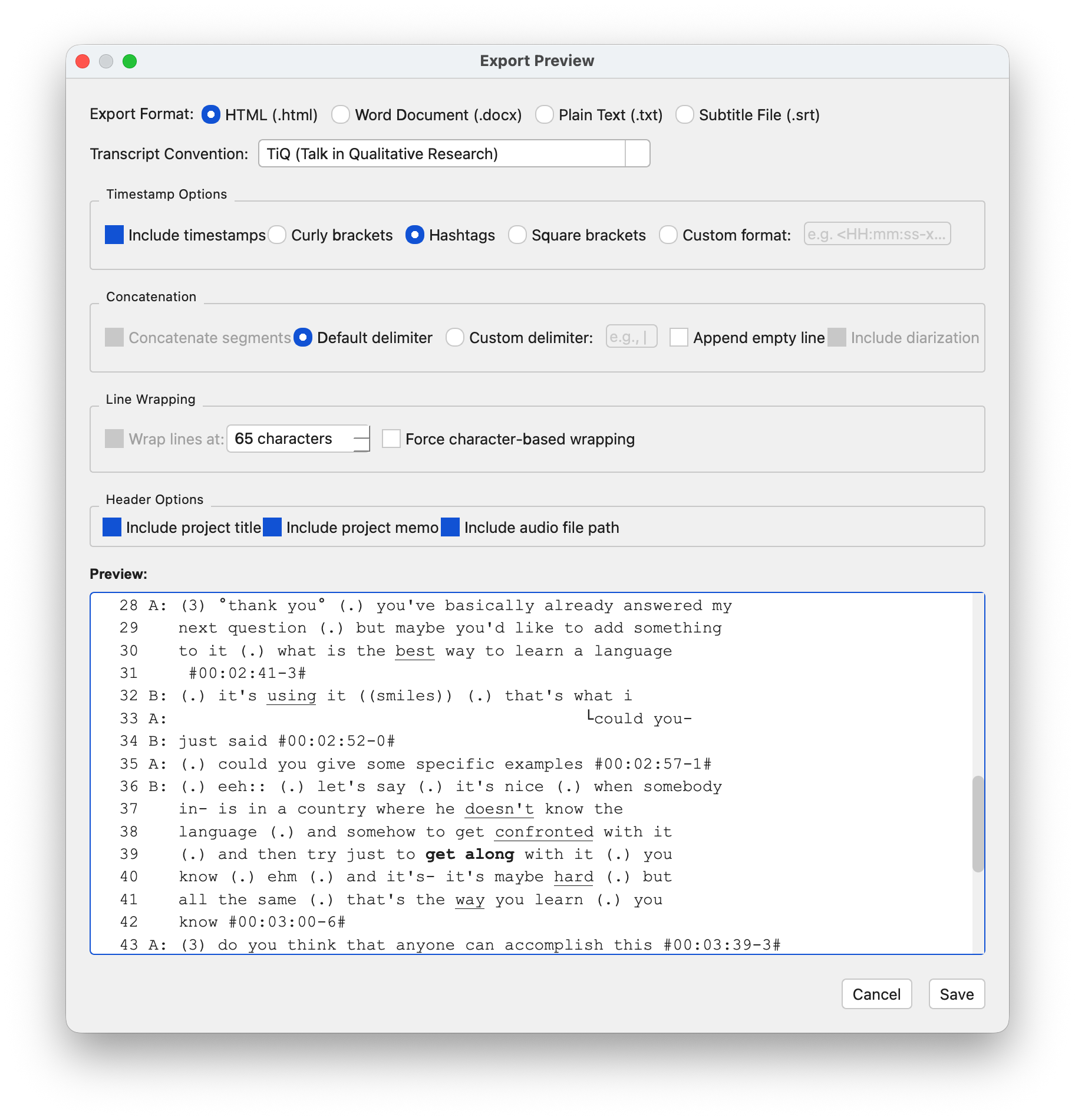
Finalize and export. Press the Export button or Ctrl + Enter to open the export dialog. Choose transcript conventions, customize line-wrapping, timestamps and other options and export as HTML, DOCX, TXT, or SRT.
CapsQual can also be used from the command line for headless conversion (Run from one directory level above CapsQual):
# Convert an SRT file to GAT2 transcript
python -m CapsQual transcript.srt

# Launch the GUI
python -m CapsQual -g

# TiQ format with auto-diarization (speaker names before colons)
python -m CapsQual input.srt -f tiq --speaker="$:"

# Export as HTML
python -m CapsQual input.srt -o transcript.html

# Customize layout
python -m CapsQual input.srt -f dresing_pehl --blank-lines
Supported input formats: .srt, .vtt, .txt, .tsv, .json
Output formats: GAT2 (default), TiQ, Dresing & Pehl
Export types: .txt (default), .html, .docx
For a full list of options, run python -m CapsQual --help.
For installation instructions and more information on how to use CapsQual, please refer to the CapsQual Github repository's readme or wiki.


